without IF,
there would not be
any need for BRAIN...
Simple IF Statement
I believe no much introduction is required for IF statement, because,
when we have to decide between two values, we use IF Condition or IF statement (Excel Usage).
For Example: if you have a spreadsheet with total marks,
and say for example, 50 marks is the cut-off mark, then we put a condition to check,
if, that particular cell's value, is Greater than 50 or not, if it is greater than 50,
the current cell content should be PASS else the current cell content should be FAIL.
before, you continue, please consider to check the given examples, so that they may prepare
you to learn the following content, in-fact it is good practice to study the questions first
and then continue onto comprehension
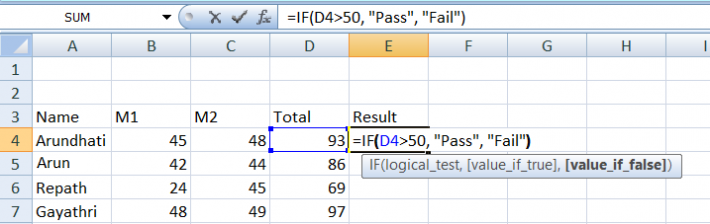
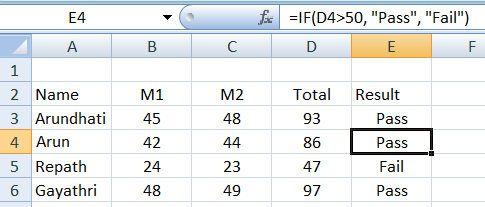
Outcome for the above screen:
Compound IF Statement
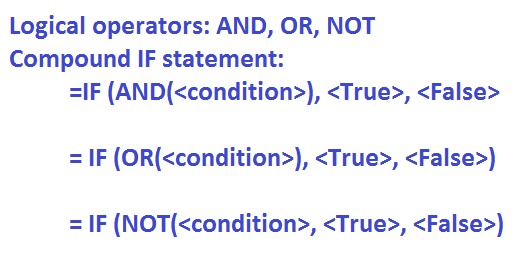
When IF statement is used with Logical Operators, it is generally called Compound IF Statement.Situation:
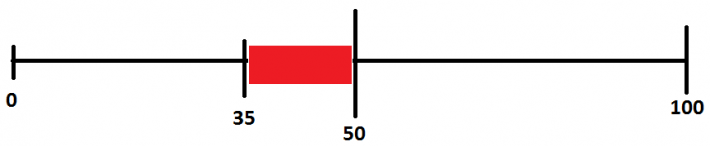
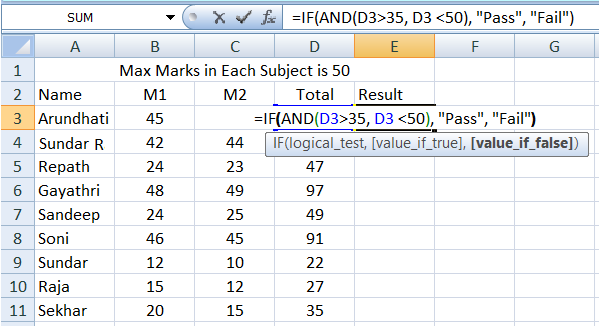
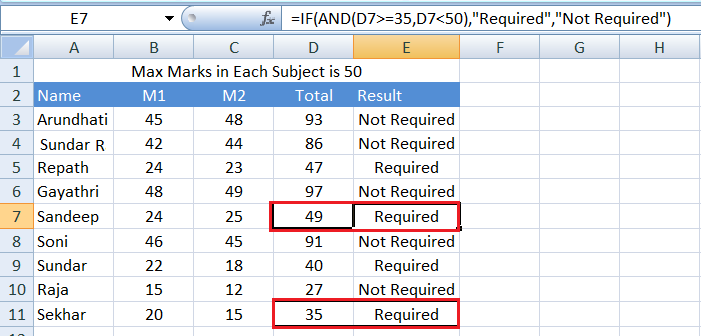
Taking the same Marks example, Management want to concentrate more on the students who are on the border of pass mark of 50, so that a bit more concentration on these students will raise the pass percentage of the school, hence to get students whose marks are greater than 35 and less than 50,
then: Write the following statement, for students with marks between 35 and 50.
NESTED IF Statement
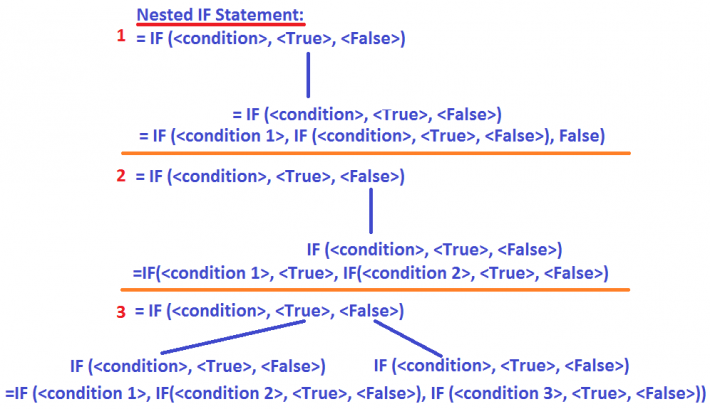
When an IF statement is used within another IF Statement,
it is called Nested IF Statement. This can accommodate any number of
conditions within another condition, including Logical operators.
Situation:
Taking the same Marks example,
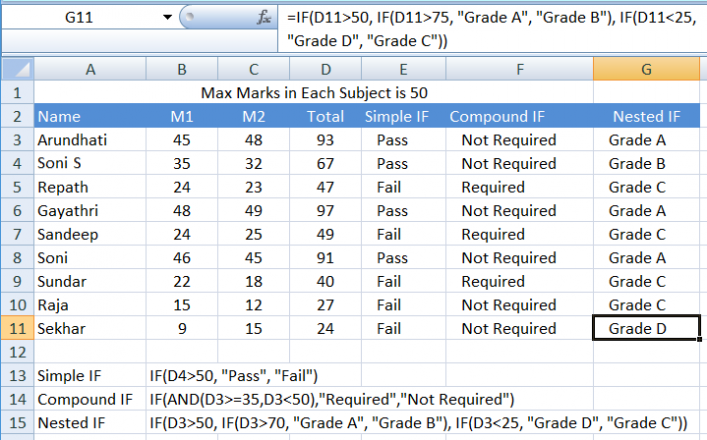
Now, the task is to Grade the students based on the marks in Col D (Total Marks).
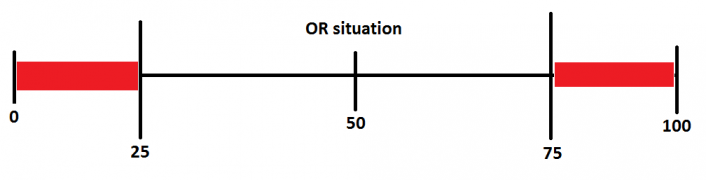
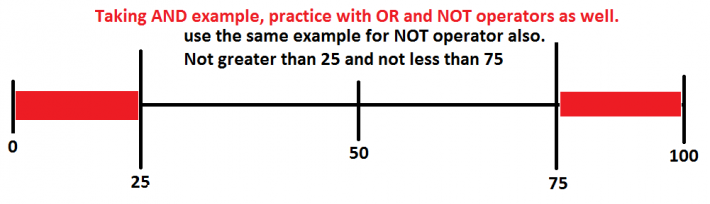
The classification would be as: students securing 75 marks and above are in Grade A,
less than 25 marks are in Grade D, between 50 and 75 are with Grade B, between 25 and
50 are with Grade C.
As the situation demands, one can have any number of If statements required
(Excel 2007 and later can contain up to 64 nesting levels, function can handle 30 arguments,
which implies to testing 30 different conditions (in theory, I did not check)
when the above logic is implemented in Excel, it would look like the following screen:
Examples for Practice
The following examples can be used either in spreadsheet to check/validate the above given IF Statement, or can be used in programming...- Simple IF: Write an IF statement to check if the value in cell A2 is greater than 50. If true, return "Pass"; otherwise, return "Fail".
- Simple IF: Create a formula to check if the text in cell B5 is exactly "Approved". If true, display "Ready to Ship"; otherwise, display "On Hold".
- Simple IF: Use an IF statement to apply a 15% tax to the price in C8 if the quantity in D8 is greater than 10, and 0 otherwise.
- Simple IF: Write a formula that checks if cell E3 contains the number 0. If it does, display "Zero Value"; otherwise, display the value of E3.
- Simple IF: In cell F12, check if the inventory level in G12 is less than 25. If true, return "Urgent Reorder"; otherwise, return "Sufficient Stock".
- Simple IF: Check the employee's tenure in cell H7. If the tenure is 5 years or more, return "Eligible for Paternity Leave"; otherwise, return "Not Eligible".
- Simple IF: Use an IF statement to assign a delivery fee of $10 if the region in I9 is "Rural"; otherwise, the fee is $5.
- Simple IF: Determine if the payment date in cell J4 is empty (ISBLANK function). If empty, return "Awaiting Payment"; otherwise, return "Paid".
- Simple IF: Write a formula that checks if the value in K1 is less than -10 (highly negative). If true, return "Critical Debit"; otherwise, return "Standard".
- Simple IF: Check if the value in L6 is an odd number (ISODD function). If true, return "Odd Index"; otherwise, return "Even Index".
- Simple IF: Assign a rating of "Excellent" if the score in M10 is 95 or above; otherwise, return "Needs Improvement".
- Simple IF: Check if the gender code in N15 is "F". If true, return "Female"; otherwise, return "Male".
- Simple IF: Use a formula to return the date in O18 if the status in P18 is not "Closed"; otherwise, return a hyphen "-".
- Compound IF Use an IF(AND()) statement to check if the age in A15 is greater than 18 AND the city in B15 is "New York". If both are true, return "Resident Voter"; otherwise, return "Non-Voter".
- Compound IF Write an IF(OR()) statement to check if the product type in C18 is "Software" OR the cost in D18 is less than $10. If either is true, return "Low Overhead".
- Compound IF Create a formula using IF(AND()) to determine if a transaction amount in E22 is between 500 and 1000 (inclusive). If true, return "Mid-Range Transaction".
- Compound IF Check if the employee's title (F25) is "Director" OR their salary (G25) is greater than $150,000 using IF(OR()). If true, return "Executive Tier".
- Compound IF Write a formula to return "Weekend" if the day of the week (H28 using WEEKDAY) is 1 (Sunday) OR 7 (Saturday); otherwise, return "Weekday".
- Compound IF Use IF(AND()) to check if the start date (I31) is before the end date (J31) AND the number of days (K31) is greater than 30. If both are true, return "Long Term Project".
- Compound IF Create a formula that returns "Major Issue" if the status (L34) is "Critical" OR the priority (M34) is 1, using IF(OR()).
- Compound IF Write an IF(AND()) statement to ensure the name in N37 is not blank (N37<>"") AND the email in O37 contains the "@" symbol (ISNUMBER(FIND("@", O37))). If both are true, return "Contact Valid".
- Compound IF Check if the region is "East" (P40) OR the sales figure (Q40) is above $20,000. If either is true, return "High Focus Area".
- Compound IF Use a compound IF to check if the item is not expired (R43 > TODAY()) AND the quantity is greater than zero (S43 > 0). If true, return "Available".
- Compound IF Determine if the price in T46 is less than $10 AND the color in U46 is "Red". If both are true, return "Sale Item".
- Compound IF Check if the file size in V49 is over 50MB OR the file type in W49 is "Video". If either is true, return "Needs Archiving".
- Compound IF Write a formula to check if the value in X52 is an even number (ISEVEN) AND the value is positive (X52 > 0). If both are true, return "Positive Even".
- Nested IF: Write a Nested IF statement to assign grades: "A+" if score (A55) $\ge 95$; "A" if $\ge 90$; "B" if $\ge 80$; "C" if $\ge 70$; and "Fail" otherwise.
- Nested IF: Create a formula that assigns a discount level: "Max" if purchase amount (B58) $\ge 500$; "Mid" if $\ge 250$; "Min" if $\ge 100$; and "None" otherwise.
- Nested IF: Use a Nested IF to determine flight class based on ticket price (C61): "First" if $\ge 1000$; "Business" if $\ge 500$; "Economy" otherwise.
- Nested IF: Write a formula to categorize employee status: If D64 is "Active", return "Permanent"; if D64 is "On Leave", return "Temporary"; otherwise, return "Terminated".
- Nested IF: Check the priority code (E67): If 1, return "High"; if 2, return "Medium"; if 3, return "Low"; if anything else, return "Unclassified".
- Nested IF: Use a Nested IF to determine the regional code: If city (F70) is "Paris", return "EUR"; if city is "Tokyo", return "ASIA"; if city is "Sydney", return "APAC"; otherwise, return "Other".
- Nested IF: Determine the project status: "Complete" if G73 is 100%; "Nearly Done" if $\ge 90$; "In Progress" if $> 0$; otherwise, "Not Started".
- Nested IF: Write a formula using AND conditions within a Nested IF: If H76 $\ge 100$ AND I76 = "Gold", return "Premium Status"; otherwise, if H76 $\ge 50$, return "Standard Status"; otherwise, "Basic Status".
- Nested IF: Create a formula to assess a student's eligibility for an advanced course: If GPA (J79) $\ge 3.5$, return "Eligible"; otherwise, if GPA $\ge 3.0$ AND attendance (K79) $\ge 90\%$, return "Conditional"; otherwise, "Not Eligible".
- Nested IF: Use a Nested IF to check item quality (L82): If "A", return "Best Quality"; if "B", return "Acceptable"; if "C", return "Requires Inspection"; otherwise, "Reject".
- Nested IF: Determine the shipping cost based on weight (M85): If $\le 1 \text{ kg}$, cost is $5; if $\le 5 \text{ kg}$, cost is $15; if $\le 10 \text{ kg}$, cost is $25; otherwise, cost is $50.
- Nested IF: Write a Nested IF to set the approval level: If value in N88 is $\ge 1000$ AND manager in O88 is "Smith", return "CEO Approval"; otherwise, if value $\ge 500$, return "VP Approval"; otherwise, "Manager Approval".
- Nested IF: Create a formula to check a cell for errors (ISERROR): If ISERROR(P91) is true, return "Data Error"; otherwise (using the next IF), if the cell is blank (ISBLANK(P91)), return "Missing Data"; otherwise, return "OK".
- "High Priority" if the value in B94 is greater than 100 AND the date in C94 is less than TODAY(). (Compound IF)
- "Medium Review" if the value in B94 is between 50 and 100 (inclusive) OR the status in D94 is "Hold". (Compound IF within a Nested IF)
- "Low Focus" if the value in B94 is less than 50. (Simple IF within a Nested IF)
- "Data Check" if none of the above conditions are met. (Simple IF as the final *value_if_false*)