Extract File(s) path
a brief description: This code will help to extract files path from a particular folder.
For example: if there exists a folder "C:\Repath\ExcelFiles\", this folder has many files and sub folders.
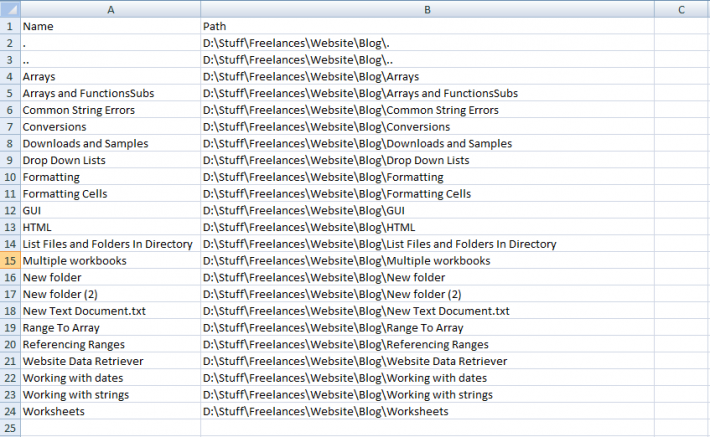
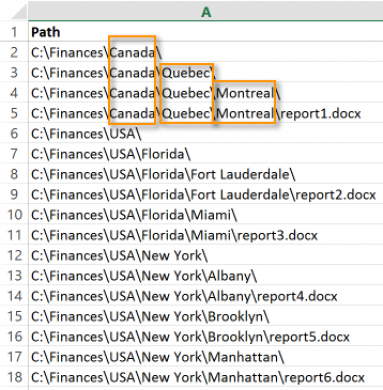
The path of each file is be listed, including sub-folders.
This code will help to retrieve the file(s) path
into current worksheet. The output would look like:
c:\Repath\ExcelFiles\abc.txt
c:\Repath\ExcelFiles\abcd.exe
c:\Repath\ExcelFiles\sample.xlsx
c:\Repath\ExcelFiles\Client\Jan.doc
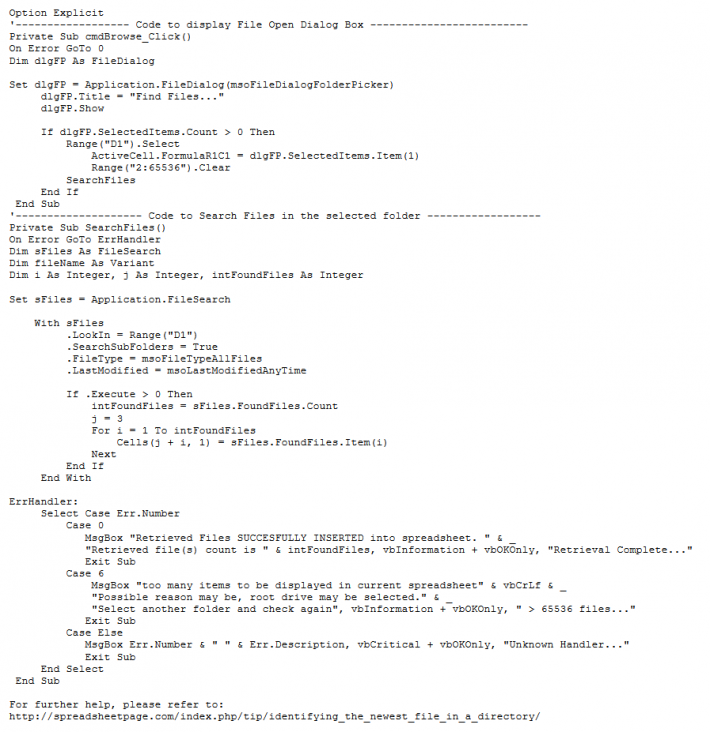
The following code is written in Microsoft Excel.
Useful to list files from specified folder, including sub folders., into current spreadsheet.
The following Code retrieves the files from the selected location of your hard disk into the current spread sheet.
Advantage: You need not browse through all the folders and sub folders to know the contents of the folder.
If the computer displays a message saying: Macro Level set too HIGH, Click "Enable Macros" button.
Procedure to Execute::
- Open a **new worksheet** in your workbook.
- Place a **Command Button** on the worksheet.
- Open the Visual Basic Editor (VBE) by pressing **Alt + F11**.
- Copy and paste the required code into the appropriate code window (usually the sheet object or a Module).
-
**Rename the Command Button** to **
cmdBrowse**.- **Note on Naming:** The **Name** (e.g., `cmdBrowse`) is the internal identifier used to refer to the control in the code, where `cmd` is a customary abbreviation for Command Button.
- The **Caption** is the text displayed on the button face, which is **different** from its Name.
- Save the file and **Click on the Command Button** on the worksheet.
-
**Observation (When clicked):**
- A **File Dialog box** is displayed.
- The user should **select the required file** (or folder, depending on the code) and click **OK**.