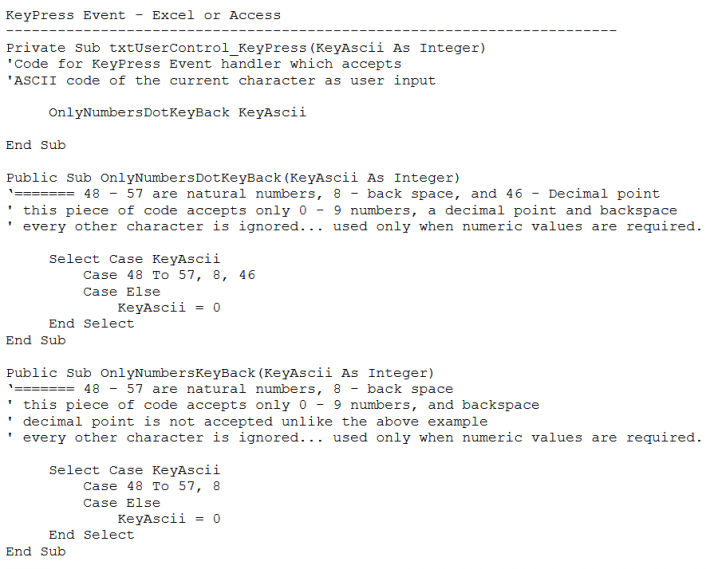
How KeyPress Event is more useful in programming
Event Handler:
Event handler is nothing more than a procedure/function. Events are executed
- either at user interaction with system or when a user presses a key on the keyboard (ie., on Mouse-Left-Button-click or Mouse-double-click-left-button.
- or with system interaction with system (ie., idle event - executed when the system is doing no activity from user's persective, a good example is screen saver, or auto-screen lock or a scheduler which runs automatically when said condition is met etc...)
KeyDown Event
- When a key is Pressed and not yet Released, the code in this event is executed as soon as you press the any key or to the key to which the program is written.KeyUp Event
- When a key is released, but not when any key is pressed=> meaning... when a key is pressed, no code works or executed, unless there is another piece of code writen for

KeyPress Event
- When a key on the keyboard is pressed and relesed... ie., when a key is press and released immediately, and not after some time.To Summarise
Three keyboard events namely: KeyDown, KeyUp, KeyPress. Please refer to chr() and asc() in excel or in access. This will help, to understand, what an ASCII (American Standard Code for Information and Interchange) code is and what does chr() and asc() are.
Points to Note:
-
Place the Text Box Control: Add a text box control (named, for example,
txtUserControl) onto the Excel UserForm, Excel worksheet, or Access form. - Access the Code Window: Double-click the text box control, or press $\text{Alt} + \text{F11}$ to open the VBA editor.
-
Select the Control and Event (if using $\text{Alt} + \text{F11}$):
- From the left drop-down list (Object/Control list) in the code window, select the name of your text box control (e.g.,
txtUserControl). - From the right drop-down list (Procedure/Event list), select the
KeyPressevent.
- From the left drop-down list (Object/Control list) in the code window, select the name of your text box control (e.g.,
-
Insert the Restriction Code: Copy and paste the provided code (which uses
SELECT CASEto check the character's ASCII value or key code and typically sets a parameter likeKeyAscii = 0to block the character). - Run the Form/Code: Press $\text{F5}$ to run the UserForm or the code associated with the control. The text box will now restrict the input of the specified characters.
Examples to Practice:
- Print only vowels in a given text box
- Print only consonents in a given text box
- Write code to convert each numeric character that is typed, to '*', just similar to password, ie., A text box should accept only numeric characters, also each numeric character that is keyed-in should be converted into '*'
- Write code to accept only first five alphabets and first five numbers and not any other character.
- Write code to accept only upper case letters and not lower case letters.
- Write code to accept only lower case letters, if the user types upper case letters, then the programme should automatically convert upper case letters into lower case letters and print in text box.
- Write code to print only special characters and none (eg: @@, #, $, %, ^, ...")
- Write code to covert any character to into special character.