Conditionally split single sheet into
Multiple sheets -
Useful at work segregation
Please Note: I have executed the code and placed over here, so,
please follow steps give under Sample Code header, and try to execute the program,
if it works well, then to read the complete article for understanding as to how it works,
else, it is waste of your time.
Let us first consider a situation where you have 10,000 rows,
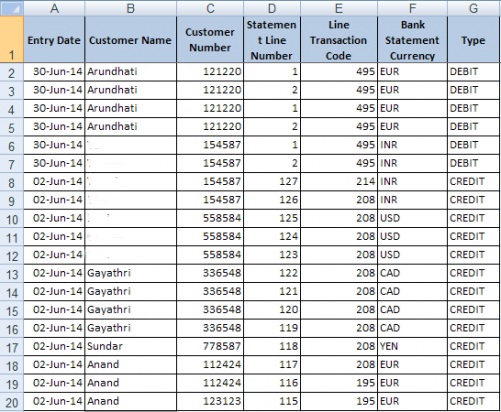
as shown in screen-shot below. The data can be split based on 'Entry Date' Col A or on
'Customer Name' Col B or on 'Customer Number' Col C and so on... ie., in a general situation,
where ever we have common data or repeatedly occuring data, we need to split the data.
Sample Data in picture:
- I used this data to split the data based on Customer Name.
- the same method can be applied where ever there is a duplicate
Examples: when a spread sheet is to be split by bank name or employee name or group name or region name or pin code etc...
Procedure to adopt
This can be done in many ways, but, I adopt the following method, which is fairly simple:-
Pre-Processing:
- Sort the Data: Ensure the 'RawData' sheet is sorted by the **required column** (e.g., Column B - Customer Name) based on which you intend to split the data.
-
Initialization:
- Define a variable for the **Start Row** (e.g.,
lngStartRow) and initialize it to the row *after* the header row (e.g., row 2, assuming row 1 is the header). - Define a variable for the **End Row** (e.g.,
lngEndRow). - Define a variable to store the **current Customer Name** (e.g.,
strCustomerName). - Determine the **Last Used Row** in the 'RawData' sheet (e.g.,
lngLastRow).
- Define a variable for the **Start Row** (e.g.,
-
Looping and Splitting:
- Start a **loop** that iterates through the rows of the 'RawData' sheet, beginning from the row
after the header (e.g., row 2) up to the
lngLastRow. - Check for Value Change: Inside the loop, check if the value in
the Customer Name column (Column B) of the **current row** is *different* from the value in the
Customer Name column of the **previous row** (or if it's the first data row).
In your example, the "change points" are rows 6, 10, 13, 17, 18. The actual split logic triggers when the value *changes* from the previous one.
- Set End Row and Customer Name:
- If a change is detected (or at the end of the data):
- Set the
lngEndRowto the **previous row's number** (i.e., the current row number - 1). - Set the
strCustomerNameto the value in the Customer Name column (Column B) of the **previous row**.
- Set the
- Handle the Initial Segment:
- The very first segment will be processed when the value changes for the first time
(e.g., at row 6). Before the first change, the segment starts at
lngStartRow(e.g., 2) and ends at the row just before the change (e.g., row 5). ThestrCustomerNamewill be the name in cell B2.
- The very first segment will be processed when the value changes for the first time
(e.g., at row 6). Before the first change, the segment starts at
- If a change is detected (or at the end of the data):
- Data Selection:
- Select the range of data in the 'RawData' sheet from row
lngStartRowtolngEndRow(for all columns you need).
- Select the range of data in the 'RawData' sheet from row
- Sheet Creation and Renaming:
- Create a New Sheet.
- Rename the new sheet using the value stored in the
strCustomerNamevariable.
- Copy Header Row:
- Select the **Header Row** data from the 'RawData' sheet (i.e., Row 1).
- Copy this data.
- Paste the copied content onto the **first row (A1 onwards)** of the newly created sheet.
- Paste Data:
- Copy the previously selected data (from
lngStartRowtolngEndRow) from the 'RawData' sheet. - Paste this copied content onto cell **A2** of the new sheet.
- Copy the previously selected data (from
- Update Start Row:
- Set the new
lngStartRowto the **current row number** (where the value change was detected), preparing for the next segment.
- Set the new
- Handle the Last Segment:
- After the loop finishes, a final check is needed to process the last
segment of data from the last updated
lngStartRowup to thelngLastRow. The logic for selection, sheet creation, and pasting must be repeated for this final block.
- After the loop finishes, a final check is needed to process the last
segment of data from the last updated
- Start a **loop** that iterates through the rows of the 'RawData' sheet, beginning from the row
after the header (e.g., row 2) up to the
To Execute the following code
-
Excel Setup:
- Open **Ms. Excel** (Version 2010 or later).
- By default, you get three sheets (Sheet1, Sheet2, Sheet3).
- **Delete** Sheet2 and Sheet3.
- **Rename** Sheet1 to RawData.
- **Prepare sample data** in the RawData sheet (including the Customer Name column, Column B, which will be the basis for splitting).
-
Accessing the Visual Basic Editor (VBE):
- Press the keyboard shortcut **Alt + F11** to open the Visual Basic Editor.
-
Code Insertion:
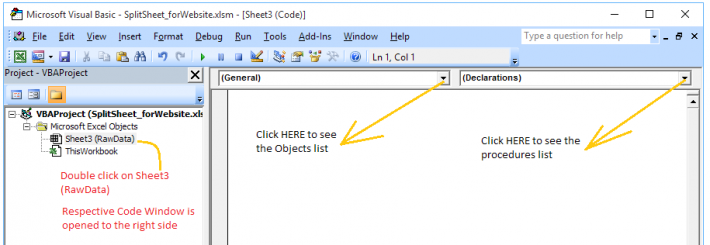
- In the VBE's Project Explorer (usually on the left), **double-click** on the
'RawData' sheet object (which is likely named
Sheet1 (RawData)). This opens the code window for that specific sheet. - **Copy the VBA code** (the procedure for splitting the data) and **paste** it into the code window you just opened.
- In the VBE's Project Explorer (usually on the left), **double-click** on the
'RawData' sheet object (which is likely named
-
Compiling and Testing the Code:
- Press the keyboard shortcut **Alt + D** and then **L** (or navigate to Debug > Compile VBAProject) to compile the code and check for syntax errors.
-
Step-by-Step Execution (Debugging):
- In the VBA code window, ensure your cursor is placed inside the procedure
(macro) you want to run (e.g.,
Sub Procedure1()). - Constantly press the **F8 key** to execute the code line-by-line (Step Into). This allows you to check the execution flow, variable values, and the resulting output on the Excel workbook.
- In the VBA code window, ensure your cursor is placed inside the procedure
(macro) you want to run (e.g.,
Expected OutCome..
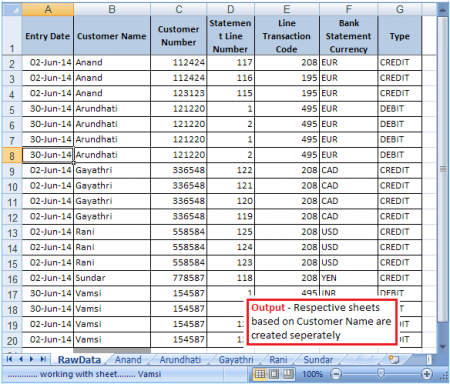
Images for reference only..
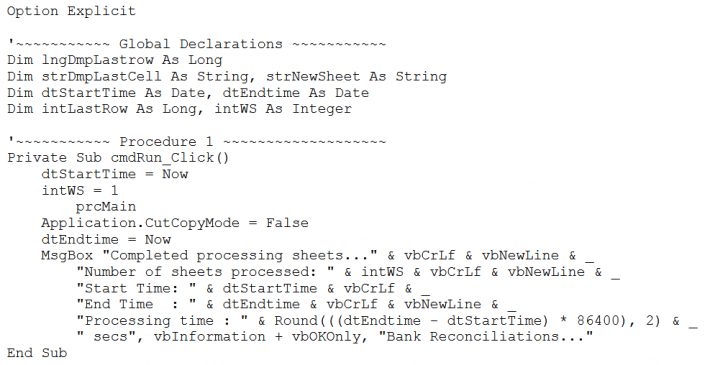
Points to consider from the above
Option Explicit:
This declaration mandates the program to declare every variable that is used
in the programme, may it be integer or long or variant or what ever variable it may be,
else System displays an error. This is a good practice, because, variables that are not
declared are considered as VARIANT and may, at times, doesnot function as intended.
General or Global Declarations:
cmdRun_Click This activity is for the easy user interface. This is discussed at length,
in the article, UserInterface (to be published). for a brief disussion, Place a control on the
work sheet, right click on the control, Click on View Code and place this code over there. Now,
instead of moving onto code window every time, one can click on the button to execute the program.
Procedure 1:
The variables declared in this section or after the option Explicit statement
are considered Global Variables, they will be available through out the code in the same module.
If any variable of the same name is declared inside any procedure (which is called local variable),
this variable has more precedence than the global variable. Please refer SCOPE OF VARIABLE topic.
I suggest you to practice the same code by doing the same with other different columns over here.
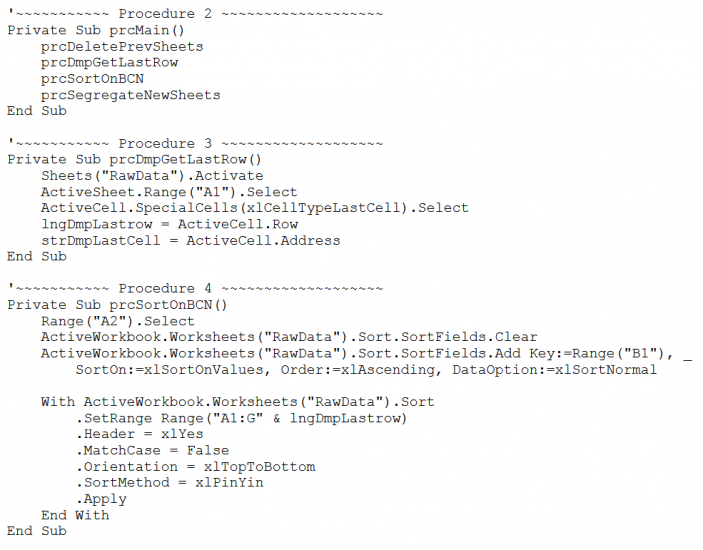
Procedure 2: prcMain:
This is the main procedure from where the program starts and program ends.
The program can still work without this procedure but it is advisable for lengthier programs.
This is where the basic skeleton of the program resides. Looking into this procedure, we can infer how
the program is structured. for additional information on procedures, please refer to Procedures and functions.
Procedure 3: prcDmpGetLastRow:
The code seems to be self explanatory, but for the advantage of the reader:
First line Selects and activates 'RawData' worksheet, Goes to the first cell 'A1', from here,
it searches for the last cell in the current work sheet, initialises 'lngDmpLastrow' variable with the
last row number, initialises 'strDmpLastCell' variable with the last cell address (though we donot use
this variable in this program)
Procedure 4: prcSortOnBCN
This procedure is used to sort the data on Customer Name present in Column B.
Sorting is done on the entire data set, rather on the Customer Name column. The
statement '.SetRange Range("A1:G" & lngDmpLastrow)' where we are assign ing the sort function a
range from 'A1' to 'G & lngDmpLastRow', where the value in the variable is substituted and hence
looks like '.SetRange Range("A1:G20")' (based on the given sample data) The value in this variable
is dependent on the data set you have, if dataset has 10 rows, then 'lngDmpLastRow' will have a value of 10,
else if, the dataset has a 1000 rows, then the value in 'lngDmpLastRow' will have a value of 1000.
Header Row is considered in the statement '.Header = xlYes', so Header Row will not be part of dataset
while on sort, and other parameters like match case, order or sort, and the method of sort are also
considered in the same code.
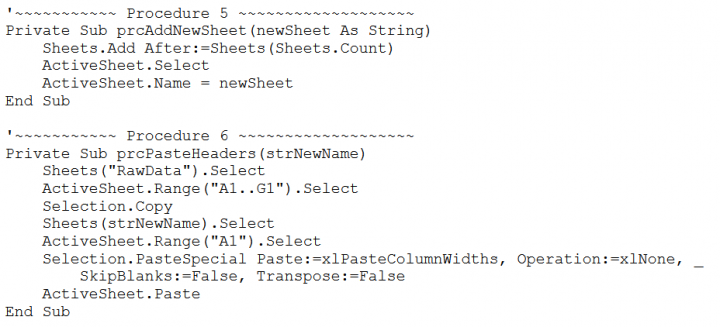
Procedure 5: prcAddNewSheet
prcAddNewSheet This procedure creates a new sheet, created at the end of the current collection,
ie, it counts the number of sheets, before the creation of new sheet and adds a new sheet after
the highest sheet count value (to put it simply, it appends a new sheet), selects the new sheet and re-names
the new sheet with the value in the variable 'newSheet'
Procedure 6: prcPasteHeaders
prcPasteHeaders This procedure creates header row for the newly created sheet.
The source for headers is the RawData Sheet. It will retain the format / coloring of the headers and
also the column width as it is in RawData Sheet.
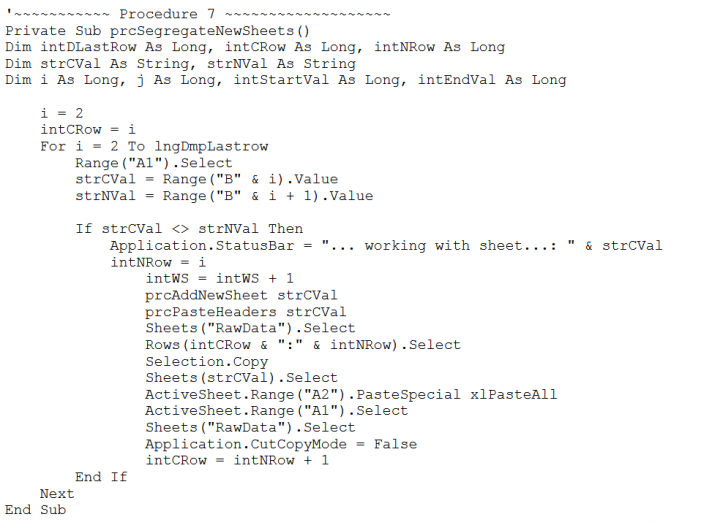
Procedure 7 : prcSegregateNewSheets
prcSegregateNewSheets This is the main part of the program, that we intend to work with.
The entire program is taken in a loop. The look start with 2, because the first line has header information.
This look works till the end, ie., the last row, checks if the next value is equal to the current value,
if so, it skips, else, new sheet is created, header row is added, Copies the current selection into A2 cell
of the new sheet.
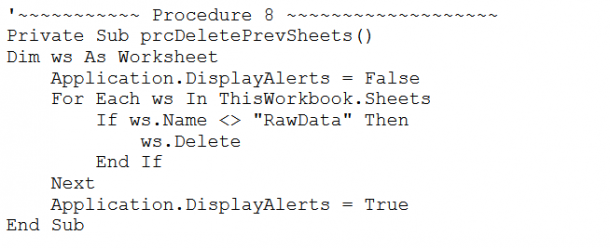
Procedure 8 : prcDeletePrevSheets
This procedure is generally called a Clean-Up procedure,
where it intends to clear any sheet that is already existing, with exception to the one in the given code.
In the given code, it deletes all sheets other than 'RawData' sheet.
Examples for Exercise:
- Segregate the same data on Date
- on Customer Number
- on Statement Line Number
- on Line transaction Code
- on Bank Statement Currency
- on Type - the type of transaction
- Now try to do this segregation on two different columns like: For the Customer_Name and Currency - ie., If a customer has different kinds of transactional currencies eg: Arundhati does transactions on EUR, INR, USD, then there should be three sheets like 'Arundhati-INR', 'Arundhati_EUR', 'Arundhati_USD'